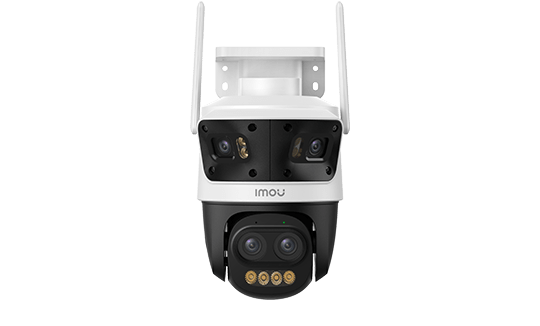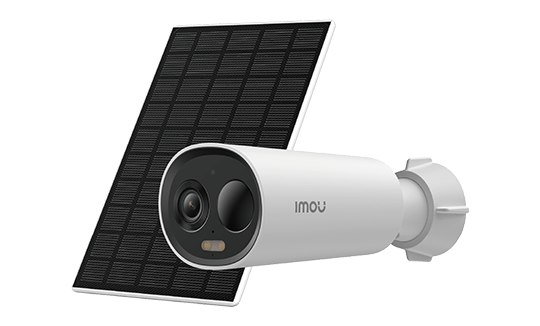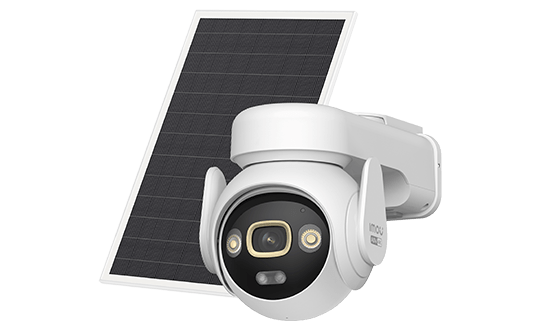
IMOU Cameras
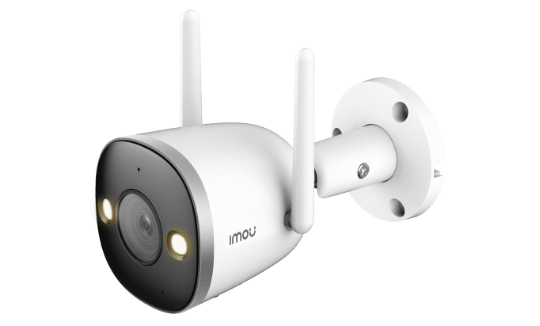
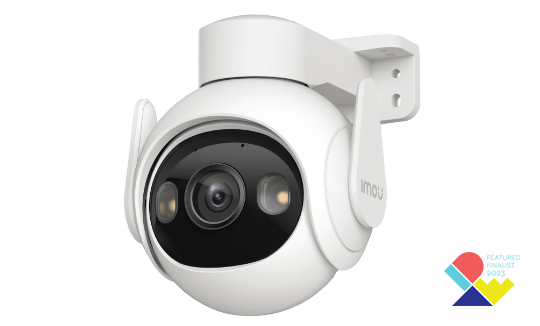
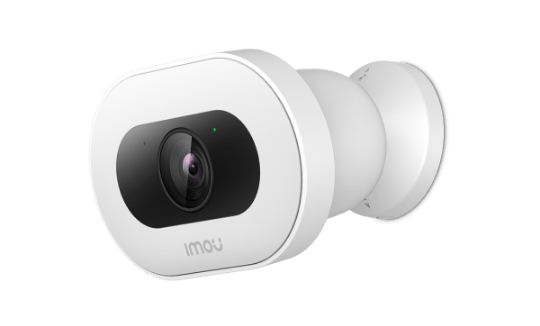
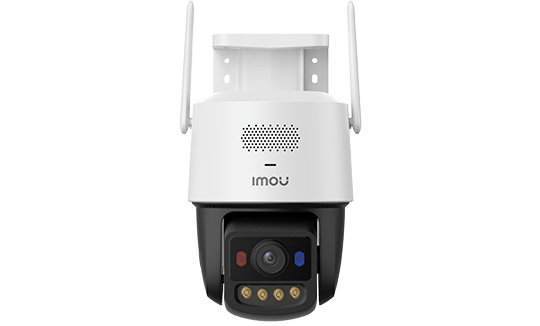
IMOU OUTDOOR CAMERA
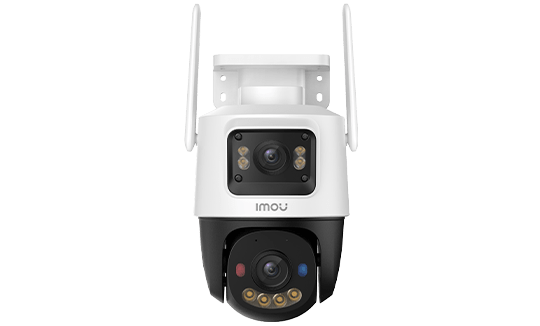
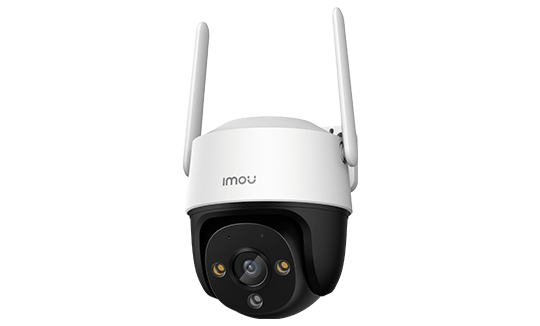
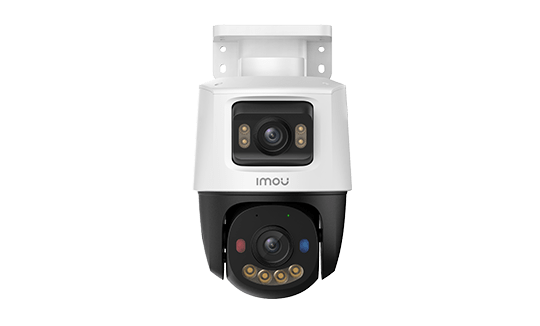
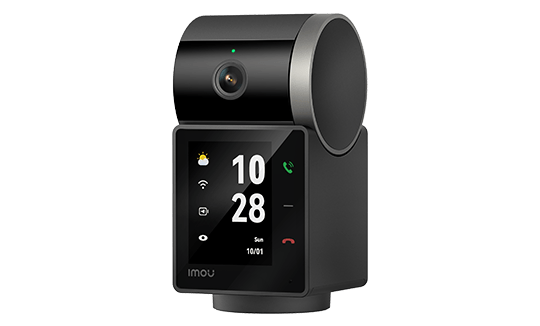
IMOU INDOOR CAMERA
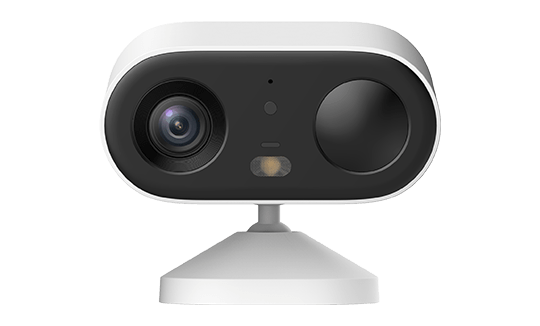
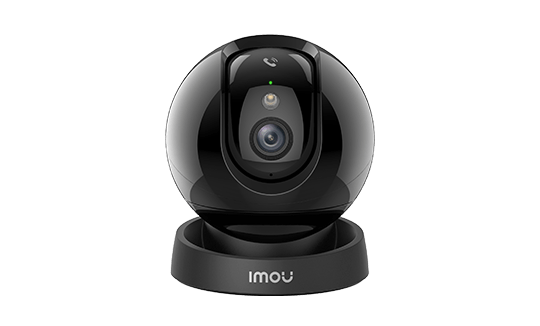
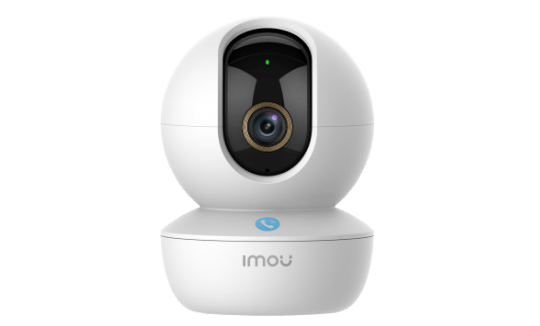
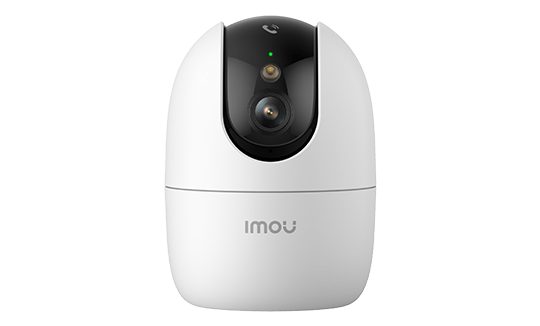
Imou Cameras and Smart Home Integration
Imou cameras work straight out of the box with the Imou Life app, but they also slot neatly into a broader smart home setup. Amazon Alexa and Google Home are officially supported, meaning you can pull up a live feed on an Echo Show or Nest Hub with a simple voice command. Apple HomeKit is not natively supported, but Homebridge and Scrypted both provide reliable workarounds for those already invested in Apple’s ecosystem. Power users can go further still — RTSP streams and ONVIF support open the door to Home Assistant, Frigate, Blue Iris, and Synology Surveillance Station. This guide covers every option available in 2026.
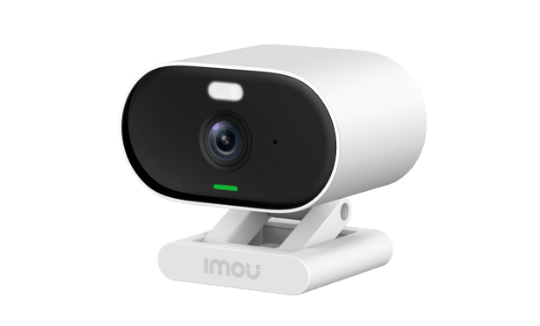
Imou with Amazon Alexa
Alexa integration works through the official Imou Life skill, available in the UK and US Alexa skill stores. Once enabled, your cameras appear alongside other smart home devices and respond to voice commands.
Setting Up the Imou Life Skill
- Open the Amazon Alexa app on iOS or Android.
- Tap More → Skills & Games.
- Search for Imou Life.
- Enable the skill and sign in with your Imou Life account credentials.
- Alexa will automatically discover all cameras registered to that account.
Voice Commands
- “Alexa, show [camera name]” — displays the live feed on an Echo Show 5, 8, 10, or 15, or on a Fire TV Stick connected to your television.
- “Alexa, hide [camera name]” — dismisses the live feed.
- “Alexa, zoom in on [camera name]” — digital zoom on supported models (functionality is limited).
Compatible Echo Devices
| Device | Video Display | Screen Resolution |
|---|---|---|
| Echo Show 5 | Yes | 960 × 480 |
| Echo Show 8 | Yes | 1280 × 800 |
| Echo Show 10 | Yes + motorised rotation | 1280 × 800 |
| Echo Show 15 | Yes | 1920 × 1080 |
| Fire TV Stick (all generations) | Yes (on TV) | Depends on TV |
| Echo Dot (with clock) | No (no video screen) | — |
Known Limitations with Alexa
- Live feed only — you cannot browse recorded footage through Alexa.
- Motion detection cannot be toggled on or off by voice command.
- Alexa routines cannot directly trigger the camera’s built-in siren or spotlight — those actions must be configured in Imou Life.
- A stable connection of at least 2 Mbps upload from the camera is recommended for smooth 1080p playback on Echo Show devices.
Imou with Google Home and Google Assistant
Official Google Home support has been in place since 2021 and remains stable in 2026 across the current Imou range. It works on Nest Hub displays, Chromecast devices, and any Android TV with built-in Google Assistant.
Linking Your Imou Life Account
- Open the Google Home app on iOS or Android.
- Tap + → Set up device → Works with Google.
- Search for Imou Life in the service list.
- Sign in with your Imou Life credentials.
- Your cameras appear as devices in the Google Home app.
Voice Commands
- “Hey Google, show [camera name]” on a Nest Hub, Nest Hub Max, or Chromecast with Google TV.
- “Hey Google, stop [camera name]” to dismiss the feed.
- Camera feeds can be embedded in Google Home Routines — for example, displaying the front door camera on your Nest Hub Max every morning at 7:30 am.
Compatible Google Devices
| Device | Video Display | Notes |
|---|---|---|
| Nest Hub (1st and 2nd gen) | Yes | 7-inch screen, 1024 × 600 |
| Nest Hub Max | Yes | 10-inch screen with built-in camera |
| Chromecast with Google TV (HD/4K) | Yes | Voice-controlled feed on your TV |
| Google Home Mini / Nest Mini | No | Audio only, no screen |
| Android TV (with Google Assistant) | Yes | Via built-in Chromecast on compatible sets |
Imou and Apple HomeKit
Imou does not natively support Apple HomeKit in 2026. No model in the current range carries HomeKit or Matter certification with a camera profile. This is one area where Arlo and Eufy hold a clear advantage, as both offer HomeKit Secure Video natively.
That said, two well-established third-party solutions let you bring Imou cameras into Apple’s Home app:
Option 1: Homebridge with the Imou Plugin
Homebridge is a Node.js server that bridges non-HomeKit devices into Apple’s ecosystem. A community plugin — homebridge-imou or similar — exposes Imou cameras to HomeKit as standard accessories.
- Requires a device that stays powered on and connected to your local network at all times: a Raspberry Pi 4, a Synology or QNAP NAS, or a spare Mac mini all work well.
- Video feeds visible in Apple’s Home app are limited to whatever the plugin exposes — typically a basic live stream.
- HomeKit Secure Video is not supported through this route: iCloud end-to-end encryption and Apple’s on-device face recognition are not available.
- Works for live viewing on iPhone, iPad, Apple TV, and HomePod.
Option 2: Scrypted
Scrypted is a local multi-protocol integration platform that does support HomeKit Secure Video. It transcodes RTSP streams from your cameras into the format Apple’s Home app expects.
- Runs on a Raspberry Pi, NAS, or as a Docker container.
- Supports HomeKit Secure Video with encrypted iCloud storage — requires an iCloud+ plan (50 GB or above).
- Requires the camera to expose an RTSP stream on your local network (see the RTSP section below).
- Imou PS-series PoE cameras are the best fit: their RTSP implementation is stable and their ONVIF support is well documented.
Imou with Home Assistant
Home Assistant is the most widely used open-source home automation platform among enthusiasts in the UK and beyond. Imou cameras can be integrated via several methods, ranging from a cloud-dependent component to fully local RTSP or ONVIF connections.
HACS Integration — imou_life Component
A community component called imou_life is available through HACS (Home Assistant Community Store). It communicates with Imou’s cloud API and exposes cameras as Home Assistant entities.
- Supported features: live video stream, motion detection state, ability to enable or disable detection, PTZ control on motorised models.
- Cloud dependency: if Imou’s servers are unreachable, the integration stops working.
- Installation: HACS → Integrations → Search “Imou Life” → Install → Restart HA → Add Integration with your Imou Life credentials.
Direct RTSP in Home Assistant
For cameras that expose an RTSP stream on your local network, a cloud-free integration is possible using HA’s generic camera platform:
camera:
  - platform: generic
    name: Imou Cruiser 2
    still_image_url: http://[CAMERA_IP]/snap.jpg
    stream_source: rtsp://admin:[YOUR_PASSWORD]@[CAMERA_IP]:554/av0_0
ONVIF Integration (PS Series)
Imou PS-series PoE cameras support ONVIF, and Home Assistant ships with a built-in ONVIF integration that requires no HACS installation.
- Navigate to Settings → Devices & Services → Add Integration → ONVIF.
- Enter the camera’s IP address, port (8000 by default on Imou cameras), username, and password.
- Home Assistant discovers the video stream and motion detection events automatically.
- Fully compatible with Frigate NVR for local AI-based object detection.
Imou Cameras with Frigate NVR
Frigate is an open-source NVR add-on for Home Assistant that performs on-device AI object detection using a YOLOv5 model. Paired with a Coral USB Accelerator or a GPU, it delivers real-time person, vehicle, and pet detection without any cloud dependency. Combined with Imou PS cameras, the result is a fully local surveillance system.
Sample Frigate configuration for an Imou PS3E:
cameras:
  imou_ps3e:
    ffmpeg:
      inputs:
        - path: rtsp://admin:[PASSWORD]@[IP]:554/av0_0
          roles:
            - detect
            - record
    detect:
      width: 3840
      height: 2160
      fps: 5
RTSP Streams and Third-Party NVR Software
Certain Imou models expose an RTSP (Real Time Streaming Protocol) stream on the local network. This allows them to be integrated into any NVR software, or viewed directly in VLC, a browser with the appropriate plugin, or any media player that handles RTSP.
Imou RTSP URL Format
| Quality | RTSP URL | Approximate Bitrate |
|---|---|---|
| Main stream (high quality) | rtsp://admin:[password]@[ip]:554/av0_0 |
2 to 8 Mbps depending on resolution |
| Sub-stream (low quality) | rtsp://admin:[password]@[ip]:554/av0_1 |
256 to 512 kbps |
The username is admin. The RTSP password is the one you set during initial camera setup in Imou Life under Advanced Settings → RTSP Password.
Models with Confirmed RTSP Support
- PS series PoE cameras (PS1C, PS3E, PS50, PS60C, PS70F) — RTSP active by default, stable stream.
- Outdoor Wi-Fi cameras (Bullet 2 Pro, Cruiser 2, Cruiser 2C) — RTSP available but must be enabled in Advanced Settings.
- NVR N110 and N118 — per-channel RTSP stream accessible via ONVIF.
Note: Consumer-focused Wi-Fi models such as the Ranger, Rex, Cue, Cell, and AOV series may have RTSP disabled or absent depending on firmware version. Check Advanced Settings in Imou Life before purchasing if RTSP access is a requirement.
Compatible NVR and Recording Software
- Blue Iris (Windows, paid) — the go-to Windows NVR for multi-camera RTSP/ONVIF setups, with AI detection via DeepStack or CodeProject.AI.
- iSpy / Agent DVR (cross-platform, free/paid) — web interface, motion-triggered recording, RTSP compatible.
- Frigate (Home Assistant, free) — local AI detection, native HA integration; best paired with a Coral USB Accelerator.
- Synology Surveillance Station — ONVIF integration of PS-series cameras into Synology NAS systems.
- VLC — for live stream playback, connectivity testing, and stream diagnostics.
Automations in the Imou Life App
The Imou Life app includes a built-in scenes and automation engine that works without any third-party hub or smart home platform.
How Scenes Work
A scene links a trigger to one or more actions. Available triggers include:
- Motion detected in a defined zone
- Person, vehicle, or pet detected (depending on model)
- Sound detected (alarm tone, baby crying)
- Manual trigger (button tap in the app)
- Schedule (e.g. every day at 10 pm)
Available actions:
- Activate the camera’s built-in siren
- Switch the Fullcolor spotlight on or off
- Send a push notification to the linked smartphone
- Begin recording to the SD card
- Control other Imou-branded smart devices linked to the account
Practical Automation Examples
| Trigger | Action | Use Case |
|---|---|---|
| Person detected at front door (10 pm–6 am) | Activate siren + push notification | Night-time intruder deterrent |
| Motion detected in garage | Switch on Fullcolor spotlight | Automatic lighting and colour-night recording |
| Every evening at 9 pm | Enable motion detection | Arm the system automatically without touching the app |
| Every morning at 7 am | Disable indoor motion detection | Avoid false alerts while the household is up and about |
Family Sharing and Access Management
Imou Life lets you share camera access with up to five household members, each with individually configurable permissions.
Permission Levels
- Administrator (account owner): full access — live view, playback, configuration, sharing, deletion, advanced settings.
- Operator: live view, playback, PTZ control. No access to configuration settings.
- Viewer: live view only. No playback and no PTZ control.
How to Share
- In Imou Life, open the camera you want to share → Settings → Share.
- Enter the email address or phone number of the person you want to invite. They must have an Imou Life account.
- Choose the permission level (Operator or Viewer).
- The invite appears as a notification in their Imou Life app.
Sharing is per camera, not per account. You can give a trusted neighbour access to the front door camera without them being able to see the indoor cameras.
Managing Multiple Properties
A single Imou Life account can manage multiple properties or sites as separate homes, each with their own cameras and members. This works well for anyone with a second home, a holiday rental, or a small business with several locations to monitor.
Compatibility Summary
| Platform | Support Status | Connection Type | What You Get |
|---|---|---|---|
| Amazon Alexa | Official | Cloud | Live feed on Echo Show / Fire TV |
| Google Home | Official | Cloud | Live feed on Nest Hub / Chromecast |
| Apple HomeKit | Not native | Homebridge or Scrypted | Basic live view (Homebridge), HSV with Scrypted + RTSP |
| Home Assistant | Community | Cloud (HACS) or local (RTSP/ONVIF) | Live feed, detection events, PTZ, Frigate NVR |
| IFTTT | Not available | — | No IFTTT integration in 2026 |
| Node-RED | Indirect | Via local API or HA MQTT | Complex automations using HA events |
| Synology Surveillance Station | Via ONVIF | Local | PS series only, recording to Synology NAS |
| Blue Iris / iSpy / Frigate | Via RTSP | Local | PS series and select Wi-Fi models, full NVR functionality |
Key Takeaways
- Alexa and Google Home are officially supported: view live streams on Echo Show, Nest Hub and Chromecast with a simple voice command.
- Apple HomeKit is not natively supported — use Scrypted (with RTSP) for HomeKit Secure Video or Homebridge for a basic stream.
- PoE PS series cameras are best suited for advanced integration (ONVIF, stable RTSP, Frigate and Synology compatibility).
- The
imou_lifeHACS component for Home Assistant lets you control cameras (PTZ, detection, stream) via the Imou cloud API. - Imou Life automations (scene trigger/action) work without an external smart home hub — siren, light, notification, scheduled arming.
Frequently Asked Questions
Can I integrate Imou cameras in Home Assistant without cloud?
Yes, via local RTSP stream. PoE cameras (PS1C, PS3E, PS50) have RTSP enabled by default and support ONVIF. In Home Assistant, add the official ONVIF integration with the camera’s IP — no Imou cloud required. For Wi-Fi cameras (Ranger, Cruiser, Bullet), RTSP must be manually enabled in Imou Life advanced settings.
Is Imou compatible with Synology Surveillance Station?
Yes, via ONVIF. Imou PS series cameras are automatically recognized by Synology Surveillance Station as ONVIF devices, enabling recording on a Synology NAS. Wi-Fi Imou cameras can also be added manually via RTSP, though reliability varies by firmware version.
How many users can share access on Imou Life?
The Imou Life app allows sharing access to each camera with up to 5 additional members. Each member receives a configurable permission level (Administrator, Operator or Observer). Sharing is per camera: a member can access some cameras without seeing all of them.
Do Imou Life automations work without internet?
Imou Life automations rely on the Imou cloud for triggering and executing actions. If the internet connection is lost, configured scenes will not fire. However, local SD recording continues even without internet, and some models can activate an onboard siren locally upon detection via the embedded firmware.